Join our next Live Demo on Mar 16th!

Resource Blog News Customers Stories

Updated: Aug 20, 2025 Upd: 20.08.25

9 min read

Self-Service Terraform AWS for DevOps Teams

Self-Service Terraform AWS for DevOps Teams

If you’ve worked with AWS, you’ve likely had to provision cloud infrastructure — maybe databases, storage buckets, or compute instances. Many teams start by using the AWS Console for these tasks. But manual provisioning doesn’t scale — especially when managing multiple environments like development, QA, staging, and production. That’s where Self-Service Terraform AWS workflows come in — enabling teams to provision infrastructure autonomously, securely, and at scale.

That’s where Self-Service Terraform AWS comes in. By integrating Infrastructure as Code (IaC) principles with Terraform’s HCL scripting, teams can create reusable and modular infrastructure that scales reliably across different environments.

In this guide, we’re going to explore how to set up Self-Service Terraform AWS environments. We’ll also cover how to incorporate Git workflows, CI/CD pipelines, and cost governance into your provisioning strategy.

Setting up Self-Service Infrastructure on AWS

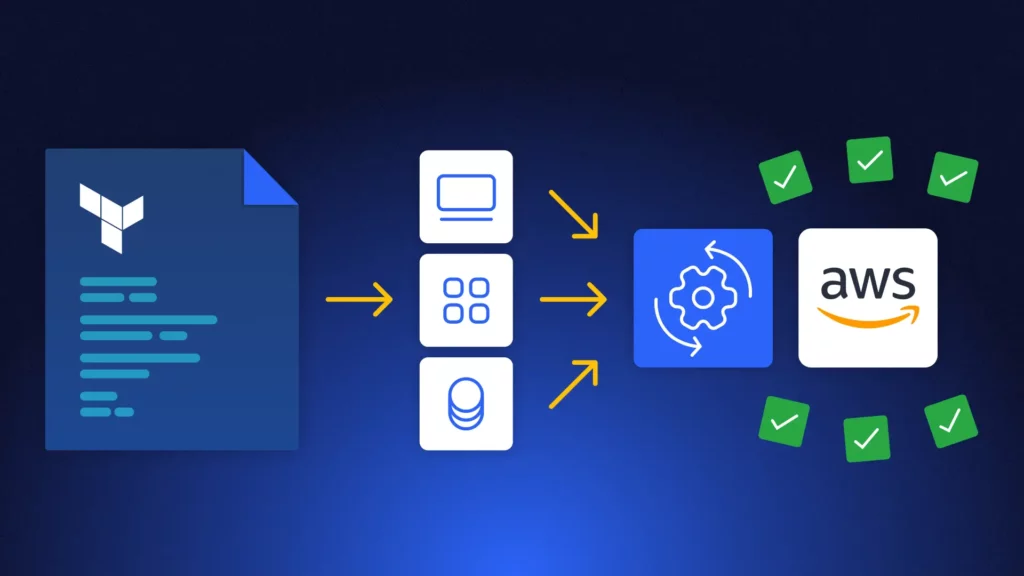
Setting up Self-Service Terraform AWS infrastructure helps provision resources autonomously, securely, and consistently. These are the steps you would have to follow:

  1. Set up a Git repository
  2. Define modular infrastructure
  3. Setup CI/CD pipelines to execute Terraform changes
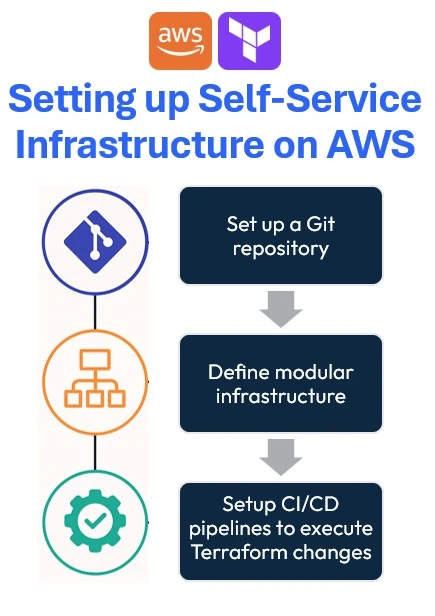
Set up a Git repository

Start creating a Git repository using services like GitHub, GitLab, or Bitbucket to track and version control Terraform code. This helps teams to manage all changes made to the cloud infrastructure over time.

Additionally, it automates the provisioning of the infrastructure using CI/CD for Terraform.

Define modular infrastructure

It’s important to create the Terraform code for better readability and long-term maintenance. Defining modular infrastructure involves breaking down infrastructure resources into reusable Terraform modules, each encapsulating specific AWS components like VPCs, EC2 instances, or RDS databases.

By using Terraform modules, teams can abstract complex configurations to easily deploy consistently across multiple environments (development, staging, production).

Setup CI/CD pipelines to execute Terraform changes

Creating a pipeline to execute Terraform changes involves automating infrastructure deployments. You can either build (and maintain) pipelines on your ownusing CI/CD tools such as GitHub Actions, and AWS CodePipeline or you can use a dedicated tool for that.
We believe that software-dedicated pipelines are not good enough for infrastructure.

These pipelines automate the complete Terraform lifecycle:

  1. Initialization
  2. Validation
  3. Planning
  4. Applying configurations automatically upon each code commit.

For large-scale cloud environments, set up an AWS Terraform infrastructure governance tool integrated into your pipeline for continuous infrastructure drift detection and validation.

This ensures infrastructure changes are thoroughly tested and reviewed before deployment, preventing errors or configuration drift.

Implementing Self-Service Terraform AWS Environments

Start by creating an IAM User and a Secret access key with the necessary permission to provision your infrastructure in AWS. After that, proceed with the next section.

Step 01: Initialize Terraform AWS Boilerplate for Self-Service

In this article, let’s create one module infrastructure component – DynamoDB, and maintain one environment – Development. To do so, create the folder structure showcased below:
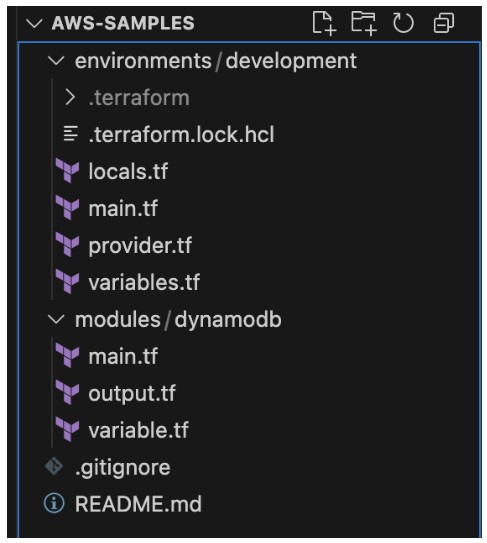
The project structure enforces self-service:

  1. environments/ keeps each deployment (dev, staging, prod) isolated—so you don’t accidentally apply prod changes to dev.
  2. modules/ houses composable building blocks you can reuse (e.g. your DynamoDB module) across environments.
  3. A clean root with .gitignore & README.md helps onboard new team members.

Step 02: Defining self-service infrastructure

You can define the providers for your infrastructure. In this case, you’ll need to configure the AWS provider with S3 backed state:

terraform {
 required_providers {
   aws = {
    source = "hashicorp/aws"
    version = "~> 4.16"
   }
 }
 backend "s3" {
   bucket = "lakindus-terraform-state-storage"
   key = "development/terraform.tfstate"
   region = "us-east-1"
 }
 required_version = ">= 1.2.0"
}

provider "aws" {
 region = "us-east-1"
}

Note: Ensure that the S3 bucket that you are using to manage your Terraform State is already created.

Next, you’ll need to define your tags that can help better track your infrastructure. Part of building a self-service infrastructure is to keep reusability and maintainability high. To do so, you can define your tags as a local variable scoped to your particular development environment, like so:

locals {
 tags = {
   ManagedBy = "Terraform"
   Environment = "Development"
 }
}

Next, you can specify these tags by referencing locals.tags onto any resource you wish to tag.

Afterwards, you can start defining the module for DynamoDB. You’ll see three files:

  1. main.tf: This holds the resource declaration
  2. output.tf: This holds any output that will be generated from the resource
  3. variable.tf: This defines all inputs required to configure the resource.

For instance, to provision a DynamoDB table, you’ll need:

  1. Table name
  2. Tags
  3. Hash key
  4. Range key
  5. GSIs
  6. LSIs
  7. Billing Mode
  8. Provisioned capacity – if billing mode is PROVISIONED

To accept these values, you can define the variables for the module:

variable "table_name" {
 description = "The name of the DynamoDB table"
 type = string
}

variable "hash_key" {
 description = "The name of the hash key"
 type = string
}

variable "hash_key_type" {
 description = "The type of the hash key: S | N | B"
 type = string
 default = "S"
}

variable "range_key" {
 description = "The name of the range key (optional)"
 type = string
 default = ""
}

variable "range_key_type" {
 description = "The type of the range key: S | N | B"
 type = string
 default = "S"
}

variable "billing_mode" {
 description = "Billing mode: PROVISIONED or PAY_PER_REQUEST"
 type = string
 default = "PROVISIONED"
}

variable "read_capacity" {
 description = "Read capacity units (for PROVISIONED mode)"
 type = number
 default = 5
}

variable "write_capacity" {
 description = "Write capacity units (for PROVISIONED mode)"
 type = number
 default = 5
}

variable "global_secondary_indexes" {
 description = "List of global secondary index definitions"
 type = list(object({
 name = string
 hash_key = string
 range_key = optional(string)
 projection_type = string
 non_key_attributes = optional(list(string))
 read_capacity = optional(number)
 write_capacity = optional(number)
 }))
 default = []
}

variable "tags" {
 description = "Tags to apply to the DynamoDB table"
 type = map(string)
 default = {}
}
Next, you can define the module:
resource "aws_dynamodb_table" "this" {
 name = var.table_name
 billing_mode = var.billing_mode
 hash_key = var.hash_key
 range_key = var.range_key == "" ? null : var.range_key

 attribute {
 name = var.hash_key
 type = var.hash_key_type
 }

 dynamic "attribute" {
   for_each = var.range_key == "" ? [] : [var.range_key]
   content {
    name = range_key.value
    type = var.range_key_type
   }
 }

 dynamic "global_secondary_index" {
  for_each = var.global_secondary_indexes
  content {
   name = global_secondary_index.value.name
   hash_key = global_secondary_index.value.hash_key
   range_key = lookup(global_secondary_index.value, "range_key", null)
   projection_type = global_secondary_index.value.projection_type
   non_key_attributes = [global_secondary_index.value.non_key_attributes]
   read_capacity = lookup(global_secondary_index.value, "read_capacity", var.read_capacity)
   write_capacity = lookup(global_secondary_index.value, "write_capacity", var.write_capacity)
  }
 }

 read_capacity = var.billing_mode == "PAY_PER_REQUEST" ? null : var.read_capacity
 write_capacity = var.billing_mode == "PAY_PER_REQUEST" ? null : var.write_capacity

 tags = var.tags
}

Next, you can define the module:

resource "aws_dynamodb_table" "this" {
 name = var.table_name
 billing_mode = var.billing_mode
 hash_key = var.hash_key
 range_key = var.range_key == "" ? null : var.range_key

 attribute {
 name = var.hash_key
 type = var.hash_key_type
 }

 dynamic "attribute" {
   for_each = var.range_key == "" ? [] : [var.range_key]
   content {
    name = range_key.value
    type = var.range_key_type
   }
 }

 dynamic "global_secondary_index" {
  for_each = var.global_secondary_indexes
  content {
   name = global_secondary_index.value.name
   hash_key = global_secondary_index.value.hash_key
   range_key = lookup(global_secondary_index.value, "range_key", null)
   projection_type = global_secondary_index.value.projection_type
   non_key_attributes = [global_secondary_index.value.non_key_attributes]
   read_capacity = lookup(global_secondary_index.value, "read_capacity", var.read_capacity)
   write_capacity = lookup(global_secondary_index.value, "write_capacity", var.write_capacity)
  }
 }

 read_capacity = var.billing_mode == "PAY_PER_REQUEST" ? null : var.read_capacity
 write_capacity = var.billing_mode == "PAY_PER_REQUEST" ? null : var.write_capacity

 tags = var.tags
}

As shown above, you now have a blueprint for a DynamoDB table that anyone can use to create a table. By doing so, you enforce consistency in your project. Different developers can provision a table using this module and guarantee the same configurations to be applied.

Finally, you can define your outputs:

utput "table_name" {
 description = "The name of the DynamoDB table"
 value = aws_dynamodb_table.this.name
}

output "table_arn" {
 description = "The ARN of the DynamoDB table"
 value = aws_dynamodb_table.this.arn
}

output "hash_key" {
 description = "The hash key name"
 value = aws_dynamodb_table.this.hash_key
}

output "range_key" {
 description = "The range key name"
 value = try(aws_dynamodb_table.this.range_key, "")
}

This helps you access values that will be made available only upon resource creation.

Finally, you can provision the resource by configuring the module in your main.tf :

module "db" {
 source = "../../modules/dynamodb"
 table_name = "sample-table"
 billing_mode = "PAY_PER_REQUEST"
 hash_key = "id"
 hash_key_type = "S"
 tags = local.tags
}

As shown above, it’s extremely simple to create a table using the module. You don’t need to define the resource and all the properties every single time. All you need to do is fill in the input variables defined in your module.

Final Step: CI/CD for Self-Service Terraform AWS Deployments

Once you’re ready to provision the infrastructure, you can push changes to your repository:
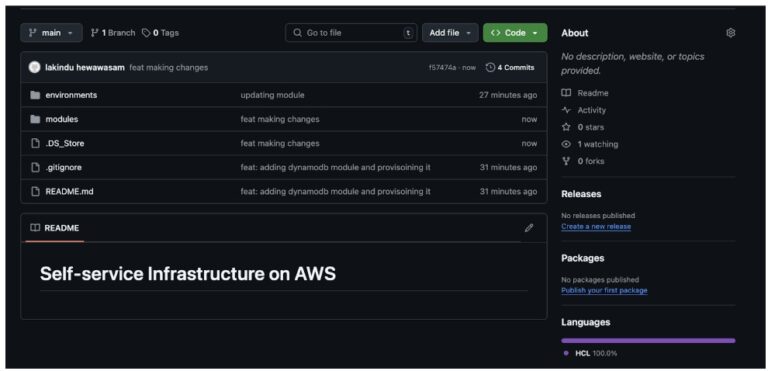
Next, you will need to create the following:

  1. GitHub Actions Workflow to deploy your changes using CI/CD
  2. IAM Service Role that authenticates via OIDC to help the GitHub Runner communicate with AWS.

Note: To learn about creating an OIDC Role with AWS, check this out.

Once you’ve created an IAM Role that can be assumed using OIDC, you can create the following GitHub Workflow:

name: Terraform Deployment with AWS OIDC

name: Terraform Deployment with AWS OIDC

on:
  push:
    branches:
      - main
  pull_request:

permissions:
  id-token: write # Needed for OIDC token
  contents: read # To checkout code

jobs:
  terraform:
    name: Terraform OIDC Deploy
    runs-on: ubuntu-latest

    env:
      AWS_REGION: us-east-1

    steps:
      - name: Checkout Repository
        uses: actions/checkout@v4

      - name: Configure AWS Credentials via OIDC
        uses: aws-actions/configure-aws-credentials@v4
        with:
          role-to-assume: ${{ secrets.AWS_ROLE_ARN }}
          aws-region: ${{ env.AWS_REGION }}

      - name: Change Directory to Environment
        run: cd environments/development

      - name: Setup Terraform
        uses: hashicorp/setup-terraform@v3
        with:
          terraform_version: "1.7.4"

      - name: Terraform Init
        run: terraform init
        working-directory: environments/development

      - name: Terraform Plan
        run: terraform plan -out=tfplan
        working-directory: environments/development

      - name: Terraform Apply
        if: github.ref == 'refs/heads/main'
        run: terraform apply -auto-approve tfplan
        working-directory: environments/development

With this workflow, the GitHub actions workflow will:

  1. Assume the IAM role using OIDC
  2. Perform a Terraform plan and auto apply the changes.

After you run it, you should see the status in the GitHub actions workflow:
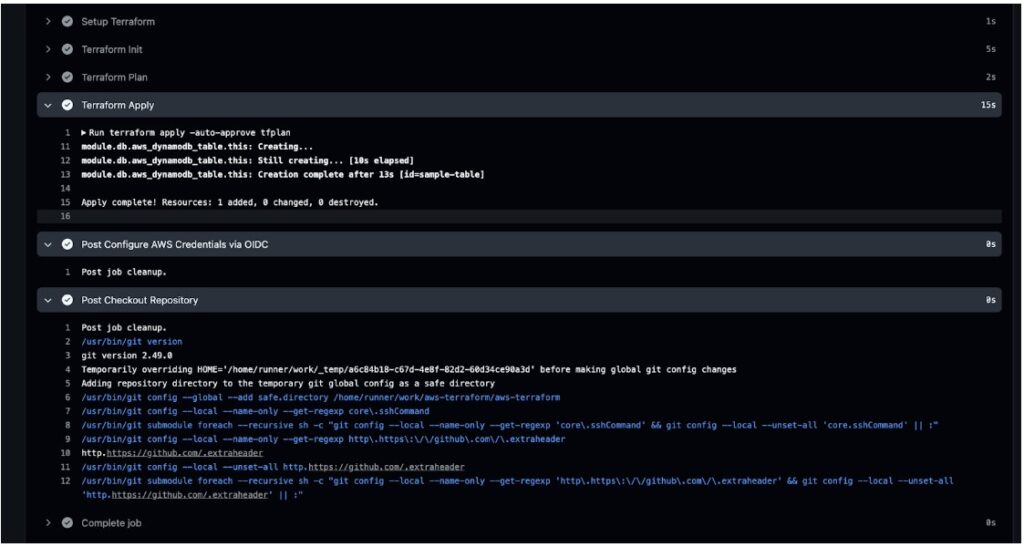
Next, you can view your resource in the AWS Console:
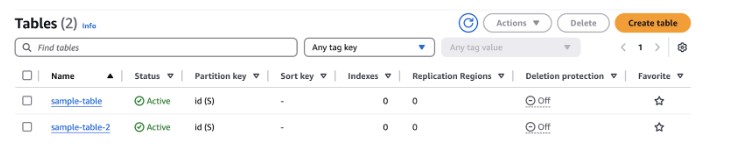
And that’s all you need. Next, all your pushes to the repository will trigger plans that will be applied automatically.

Pricing & cost management

After you start managing infrastructure with Self-Service Terraform AWS, it’s important to understand the techniques to adopt to efficiently manage costs:

1. Enforce Consistent Tagging for Cost Allocation

Tag every resource with a common set of metadata so AWS Cost Explorer and your billing reports can slice & dice by team, project or environment.

# variables.tf
variable "common_tags" {
  type = map(string)
  default = {
    Project     = "my-app"
    Environment = "dev"
    Owner       = "team-backend"
  }
}

# main.tf (example)
resource "aws_dynamodb_table" "users" {
  # … table settings …

  tags = merge(
    var.common_tags,
    { Name = "users-table" }
  )
}

Benefits:

  1. Chargeback/showback by team or cost center
  2. Easily filter unused or mis-tagged resources

2. Shift-Left Cost Estimation with Infracost

Catch cost surprises during code review by integrating an open-source estimator like Infracost.

Install & configure infracost

brew install infracost
infracost setup –aws-project=your-aws-credentials-file

Generate a cost report

infracost breakdown --path=./environments/dev \ --format=json --out-file=infracost.json

Embed in CI (e.g. GitHub Actions) to comment on pull requests with line-item delta.

That way every Terraform change shows you “this will add ~$45/month.” This helps teams take a more proactive approach to cost management.

3. Automate Cleanup of Ephemeral Resources

This is critical for Self-Service Terraform AWS pipelines where dev environments are short-lived it Prevent “zombie” resources from quietly racking up bills. To do so, you can:

  1. Leverage Terraform workspaces or separate state buckets for short-lived environments.
  2. Use CI/CD triggered destroys for feature branches. This helps remove unnecessary costs that could incur for infrastructure created for feature branches.
  3. TTL tags + Lambda sweeper: tag dev stacks with a DeleteAfter=2025-05-12T00:00:00Z and run a daily Lambda that calls AWS APIs (or Terraform) to tear down expired resources.
  4. Drift & Orphan Detection: Regularly run terraform plan in a scheduler to detect resources that exist in AWS but not in state, then review and remove them.

4. Tie into AWS Cost Controls

Even with perfect tagging and cleanup, you need guardrails:

  1. AWS Budgets & Alerts: Create monthly budgets per tag group (e.g. Project=my-app) with email or SNS notifications.
  2. Cost Anomaly Detection: Enable AWS Cost Anomaly Detection to catch sudden spikes.

Securing Self-Service Terraform AWS Projects

In addition to cost management, you’d need to consider best practices for securely managing your infrastructure with Terraform. To do so, you can leverage the following:

1. Enforce Least-Privilege IAM

Always provision IAM roles using principles of least privilege. This means that you should only define access control policies for actions that a user will perform.

Additionally, consider using IAM Assume Role rather than access keys as the tokens are not long-lived. By doing so, any leaks in credentials will not result in a large-scale attack as the credentials will expire quickly.

2. Secure & Version Terraform State

Consider managing your state in DynamoDB consistency control with encryption in rest and in transit using KMS Keys. By doing so, you ensure security in your Terraform state.

Concluding Thoughts

Building Self-Service Terraform AWS environments is a powerful way to scale cloud provisioning while keeping control in the hands of your developers. With the right modular approach, CI/CD pipelines, and cost visibility, you can eliminate bottlenecks and reduce operational overhead.

Want to take it further?

ControlMonkey brings intelligence and automation to every step of your Self-Service Terraform AWS lifecycle. From AI-generated IaC modules to drift detection and policy enforcement, we help you govern infrastructure without slowing down innovation.

👉 Book a Self-Service Terraform AWS demo to see how ControlMonkey simplifies Terraform at scale.

Bottom CTA Background

A 30-min meeting will save your team 1000s of hours

A 30-min meeting will save your team 1000s of hours

Book Intro Call

    Sounds Interesting?

    Request a Demo

    FAQs

    Self-Service Terraform on AWS enables developers and DevOps teams to provision infrastructure—like VPCs, databases, or compute—without waiting on central platform teams. By using Terraform modules, version-controlled Git repositories, and CI/CD pipelines, organizations can scale infrastructure provisioning securely and consistently across environments.

    To secure Self-Service Terraform AWS environments, use IAM Assume Roles instead of long-lived access keys, enforce least-privilege permissions, and store state securely in S3 with encryption and DynamoDB state locking. You should also integrate drift detection and apply guardrails via CI/CD pipelines for safer deployments.

    Yes. ControlMonkey automates every step of the Self-Service Terraform AWS lifecycle – from generating reusable Terraform modules to enforcing policies, detecting drift, and integrating with your CI/CD workflows. It’s designed to give DevOps teams autonomy without sacrificing governance, visibility, or security.

    Resource Blog News Customers Stories

    Updated: Aug 19, 2025 Upd: 19.08.25

    1 min read

    Cheat Sheet: Optimize AWS Costs with Terraform

    Cheat Sheet: Optimize AWS Costs with Terraform

    What You Need to Know about cost Optimization with Terraform and AWS Provider

    Bottom CTA Background

    A 30-min meeting will save your team 1000s of hours

    A 30-min meeting will save your team 1000s of hours

    Book Intro Call

      Sounds Interesting?

      Request a Demo

      Resource Blog News Customers Stories

      Updated: Aug 24, 2025 Upd: 24.08.25

      5 min read

      Terraform AWS Automation: Scalable Best Practices

      Terraform AWS Automation: Scalable Best Practices

      Terraform has become essential for automating and managing AWS infrastructure. It is a tool called Infrastructure as Code (IaC). It helps DevOps teams manage and set up AWS assets in a cost-effective way.

      Terraform AWS provider is designed to interact with AWS, allowing teams to use code to provision AWS resources such as EC2 instances, S3 buckets, RDS databases, and IAM roles. This eliminates the possibility of human misconfigurations and makes the infrastructure scalable and predictable.

      Terraform’s use of code to manage infrastructure has many benefits, including easy version control, collaboration, and continuous integration and delivery (CI/CD).

      Using Terraform on AWS accelerates resource deployment and simplifies complex cloud configurations to be easier to manage. You can advance your cloud automation projects by applying best practices in your workflow.

      New to Terraform on AWS?

      👉Beginner’s Guide to the Terraform AWS Provider

      👉3 Benefits of Terraform with AWS

      Best Practices for Terraform on AWS

      1. Managing AWS Resources through Terraform Automation

      Managing AWS resources with Terraform is efficient. However, it is important to provision them well for cost and performance efficiency.

      Below are some of the best practices for optimizing resource provisioning.

      • Use Instance Types Based on Demand: You are running the correct size of instances in AWS that match your expected workloads. For example, Auto-scaling groups ensure the right number of EC2 instances based on the load.
      • Tagging AWS Resources: Tag your AWS resources to manage them efficiently. Tags assist you in tracking costs, grouping resources, and automating management.

      Terraform Example: Tagging an EC2 Instance:

      resource "aws_instance" "control-monkey_instance" {
        ami           = "ami-0e449927258d45bc4"
        instance_type = "t2.micro"
        tags = {
          Name        = "control-monkey_instance EC2 Instance"
          Environment = "Production"
        }
      }
      • Use Spot Instances for Cost-Efficient AWS Deployment:. Utilize Spot Instances to handle flexible and non-critical workloads. These are usually cheaper than on-demand instances and can be readily allocated through Terraform.

      2. Handling State Files and Remote Backends

      Terraform employs a state file (terraform.tfstate) to store and track the state of the infrastructure resources. This file should be handled carefully, especially in multi-team environments.

      • Remote Backends Use: Storing state files locally can lead to collaboration issues. You can use a remote storage service like Amazon S3 to store state files. DynamoDB can help with state locking and keeping things consistent.

      Example Terraform Configuration of Remote Backend with S3 and DynamoDB:

      terraform {
        backend "s3" {
          bucket         = "control-monkey-terraform-state-bucket"
          key            = "state/terraform.tfstate"
          region         = "us-east-1"
          encrypt        = true
          dynamodb_table = "terraform-lock-table"
        }
      }
      • State Locking: Enable state locking to prevent concurrent operations with the risk of corrupting the state file. Use DynamoDB with the s3 backend to accomplish that.

      3. Modularizing Terraform Code for AWS

      Breaking up Terraform code into modules is a best practice for deploying on AWS. This is especially helpful for large and complex environments.

      Organizing your Terraform code as reusable modules simplifies management, reduces duplicates, and improves collaboration.

      • Create Reusable Modules: Each Terraform module should be a single AWS resource or a group of related resources. This reduces the effort of maintaining and updating the code in the long run.

      Example Module for EC2 Instance (file: ec2_instance.tf)

      variable "instance_type" {
        default = "t2.micro"
      }
      
      resource "aws_instance" "control-monkey_instance" {
        ami           = "ami-0e449927258d45bc4"
        instance_type = var.instance_type
      }
      Main Configuration File (file: main.tf):
      module "ec2_instance" {
        source        = "./modules/ec2_instance"
        instance_type = "t2.medium"
      }
      • Use Input Variables and Outputs: Input variables let you reuse modules. Outputs give you important information, like instance IDs or IP addresses. You can use this information in other parts of your infrastructure.

      4. Automating Terraform Workflows in AWS Environments

      Setting Up CI/CD Integrating Terraform with your CI/CD pipeline allows you to automate infrastructure provisioning and management. By utilizing Terraform with AWS in your pipeline, you can streamline the speed and consistency of deployments.

      • CI/CD for Infrastructure as Code:
        • Use Jenkins, GitLab CI, or AWS CodePipeline. These tools will automatically run Terraform updates when configuration files change. This ensures that the infrastructure is always and securely updated.
      • Automate Terraform Validation:
        • Add terraform validation to your CI pipeline. This will check your configuration files before you apply them to AWS.

      terraform validate

      5. Troubleshooting Terraform AWS Automation

      Terraform deployments fail due to issues such as wrong configurations, AWS limits on the services, or provider-related problems. Below are some of the problems and what you can do to troubleshoot them.

      • Authentication Issues:
        • Ensure that your AWS credentials are set up correctly, either through the AWS_ACCESS_KEY_ID and AWS_SECRET_ACCESS_KEY environment variables or through an AWS profile in ~/.aws/credentials. If you’re utilizing AWS IAM roles, ensure the role has the correct access permissions.
      • Resource Conflicts:
        • Search for existing similar-named resources or conflicting configurations.
        • If Terraform cannot create the resource because another one already exists, use the Terraform state rm command. This will remove the current resource from the Terraform state file. You can then reapply it later.
      • Service limits: AWS has limits on certain services (such as EC2 instances and S3 buckets). Terraform will fail if you hit a limit. Visit the AWS Service Limits page and request a limit increase from AWS support if needed.
      • Debugging Terraform logs: 
        • If Terraform does not provide enough details to fix the problem, enable debugging. Set TF_LOG to DEBUG
      export TF_LOG=DEBUG
      terraform apply

      Final Thoughts on Automating with Terraform

      Using the Terraform in AWS and cloud automation makes infrastructure management more effortless. Organizations can build reliable and scalable cloud deployments by following best practices. These include managing state files with remote backends, using modular Terraform code, and implementing Terraform with CI/CD pipelines. You can find and fix deployment issues by checking Terraform logs and reviewing configurations. This will help improve the reliability of your cloud infrastructure.

      If you’re looking for automated policy enforcements and Terraform scanning integration, consider adopting ControlMonkey. It can bring your AWS assets into compliance with the latest security and operational best practices.

      Additionally, by reducing the need for human intervention and policy enforcement automation, ControlMonkey optimizes cloud automation to be faster, more trustworthy, and easier to manage with the confidence that your Terraform-based deployments are compliant and secure.

      Bottom CTA Background

      A 30-min meeting will save your team 1000s of hours

      A 30-min meeting will save your team 1000s of hours

      Book Intro Call

        Sounds Interesting?

        Request a Demo

        FAQs: Terraform Automation in AWS

        Terraform AWS Automation uses code to automatically deploy, manage, and scale AWS infrastructure for faster, consistent, and secure cloud operations.

        To successfully manage AWS resources using Terraform, keep these best practices in mind:

        • Use modules to break down complex configurations into reusable and manageable.
        • Tag your resources for better organization and cost tracking.
        • Optimize instance sizes and use auto-scaling to adjust resources based on demand.
        • Leverage remote backends like AWS S3 for state management, ensuring team collaboration and consistency.

        Use Terraform variables to parameterize configurations and make your code more flexible.

        Terraform state configuration is crucial to achieve consistency in infrastructure. Using remote backends like AWS S3 for state files and DynamoDB for locking state is recommended for AWS deployments. This setup will safely store your state files in an accessible repository and facilitate collaboration.

        Example remote backend configuration:


        terraform {
          backend "s3" {
           bucket = "control-monkey-terraform-state-bucket"
           key = "state/terraform.tfstate"
           region = "us-east-1"
           encrypt = true
           dynamodb_table = "terraform-lock-table"
          }
        }
        

        Modularizing your Terraform code is an effective way to organize resources and improve code reusability. Creating modules for common AWS resources, like EC2 instances, VPCs, and S3 buckets, helps you organize your work. This makes the code easier to manage and allows you to reuse settings in different environments.

        Example module for creating an EC2 instance:

        # ec2_instance.tf
        variable "instance_type" {
          default = "t2.micro"
        }
        resource "aws_instance" "control-monkey_instance" {
          ami = "ami-0e449927258d45bc4"
          instance_type = var.instance_type
        }
        In the main configuration file:
        module "ec2_instance" {
          source = "./modules/ec2_instance"
          instance_type = "t2.medium"
        }
        
        • Authentication Errors: Ensure your AWS credentials are correctly set up in the environment variables or through AWS CLI profiles.
        • Resource Conflicts: Check for conflicting resources (e.g., names) in AWS or the Terraform state file. If necessary, use terraform state rm to remove resources from the state.
        • IAM Permission Issues: Terraform requires the appropriate permissions to provision resources. Ensure that the IAM user or role has sufficient permission to perform the actions Terraform attempts to execute.
        • Service Limits: If you hit AWS service limits (e.g., max number of EC2 instances), you may need to request a limit increase through AWS support.

        Resource Blog News Customers Stories

        Updated: Jan 20, 2026 Upd: 20.01.26

        5 min read

        AWS Atlantis at Scale: How to Streamline Terraform Workflows

        AWS Atlantis at Scale: How to Streamline Terraform Workflows

        As cloud infrastructure becomes increasingly complex, many DevOps teams use AWS with Atlantis to automate Terraform workflows. This open-source tool links Git pull requests to Terraform operations. It helps teams improve Infrastructure as Code practices across different environments. It also helps maintain governance on a large scale.

        Terraform is widely adopted for provisioning AWS infrastructure—but as environments grow, teams encounter new layers of complexity:

        • Multiple DevOps teams making concurrent changes
        • Hundreds of thousands of resources across accounts
        • Complex dependencies between modules and services
        • Security, IAM, and compliance constraints
        • Need for consistent, auditable deployments at scale

        Many teams start with Atlantis—but as infrastructure scales, so do the limitations. This post is your deep-dive guide to scaling Terraform on AWS with Atlantis—and making it work in high-scale, multi-team environments.

        👉 Want to explore alternative tools beyond Atlantis? Read our comparison blog

        What is Atlantis?

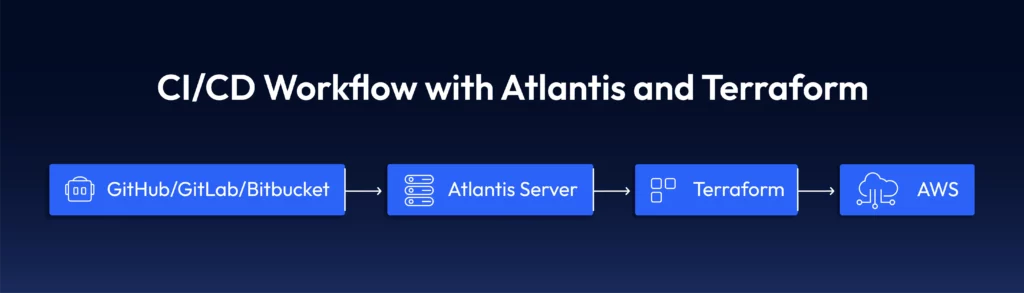
        Atlantis is an open-source tool that automates the Terraform workflow using pull requests. It bridges your version control system (GitHub, GitLab, or Bitbucket) and Terraform execution and enables collaborative infrastructure development.

        How Atlantis Works with Terraform

        Atlantis listens for webhook events in your repository hosting service. When a pull request modifies Terraform configuration files, Atlantis automatically:

        1. Runs terraform plan on the changed files
        2. Post a comment directly on the pull request
        3. Provides a mechanism to deliver changes by commenting
        4. Lock workspaces to prevent multiple concurrent changes

        Here’s a typical diagram of where Atlantis fits within your workflow:

        Key Features of Atlantis:

        • Pull Request-based Workflow: Atlantis syncs your Git repository and automatically triggers Terraform runs on open or updated pull requests.
        • Approval Process: Atlantis integrates support for approval workflow so that teams may audit Terraform plans before deployment to guarantee that modifications are compliant and secure.
        • Multi-Tenant Support: It enables multiple Terraform configurations for different environments so that multiple teams are unaffected by each other.
        • State Locking: Terraform handles state locking internally to prevent concurrent runs from overriding each other.

        To see how Atlantis compares to other Terraform automation tools, check out our in-depth Atlantis alternatives guide.

        5 Best Practices for Scaling Terraform with AWS Atlantis

        Before diving into Terraform scaling on AWS with Atlantis, you need to understand some basics about the tool. Here are five key points about Atlantis to help you start scaling your Terraform workflow:

        1. Use Terraform Workspaces for Multi-Environment

        When dealing with large AWS infrastructures, you must split your Infrastructure into multiple environments (e.g., dev, staging, production). Terraform workspaces fit well in Atlantis. You can have multiple state files for different environments. This allows you to keep one large codebase.

        Example of Workspace Configuration:

        terraform workspace new dev
        terraform workspace select dev
        terraform apply -var="environment=dev"

        2. Custom Workflows for Complex Pipelines

        Atlantis’s default workflow (plan → apply) works for simple cases, but complex Infrastructure often requires custom steps:

        Custom workflow definition in atlantis.yaml:

        workflows:
          custom:
            plan:
              steps:
              - run: terraform init -input=false
              - run: terraform validate
              - run: terraform plan -input=false -out=$PLANFILE
              - run: aws s3 cp $PLANFILE s3://terraform-audit-bucket/plans/$WORKSPACE-$PULL_NUM.tfplan
            apply:
              steps:
              - run: terraform apply -input=false $PLANFILE
              - run: ./notify-slack.sh "Applied changes to $WORKSPACE by $USER"

        3. Handling State Files Securely

        Scaling and managing Terraform state becomes critical and Atlantis works best with remote state storage:

        terraform {

        terraform {
          backend "s3" {
            bucket         = "terraform-state-${var.environment}"
            key            = "network/terraform.tfstate"
            region         = "us-east-1"
            dynamodb_table = "terraform-locks"
            encrypt        = true
          }
        }

        4. Security and Access Control for Atlantis

        Atlantis also facilitates using SSH and IAM roles to secure AWS communications. Atlantis also allows you to lock down who will approve and execute Terraform plans as a security and accountability mechanism. You also can establish AWS IAM roles in Atlantis to communicate with AWS resources securely.

        resource "aws_iam_role" "atlantis" {
          name = "atlantis-execution-role"
          
          assume_role_policy = jsonencode({
            Version = "2012-10-17"
            Statement = [{
              Action = "sts:AssumeRole"
              Effect = "Allow"
              Principal = {
                Service = "ec2.amazonaws.com"
              }
            }]
          })
        }
        
        resource "aws_iam_role_policy_attachment" "atlantis_policy" {
          role       = aws_iam_role.atlantis.name
          policy_arn = "arn:aws:iam::aws:policy/PowerUserAccess"
        }

        Assuming Different Roles for Different Environments

        #In your provider configuration
        provider "aws" {
          region = "us-west-2"
          
          assume_role {
            role_arn = "arn:aws:iam::${var.account_id}:role/TerraformExecutionRole"
          }
        }

        5. Automating Terraform Plans and Applies

        Using Atlantis after you set up Atlantis on your Git repository, the Terraform plan runs automatically. This happens for all updated or opened PRs. Atlantis also has a provision to apply Terraform changes directly once the PR has been approved. This removes the necessity for Terraform to run within the CI/CD pipeline.

        AWS Atlantis Challenges When Scaling Terraform

        1. Slow Plan and Apply Times

        When the Infrastructure grows, Terraform operations begin to slow. Large infrastructures have 5-10-min or longer plans that act as bottlenecks.

        Solution: Use Workspace Splitting

        Divide monolithic designs into separate, focused work areas:

        atlantis.yaml with parallel execution:

        version: 3
        parallel_plan: true
        parallel_apply: true
        projects:
        - name: networking
          dir: networking
        - name: databases
          dir: databases
        - name: compute
          dir: compute

        2: Managing Permissions Across Multiple AWS Accounts

        In the case of multiple AWS accounts, managing permissions becomes complex.

        Solution: Use Cross-Account Role Assumption

        Create roles in each account that Atlantis can assume

        resource "aws_iam_role" "terraform_execution_role" {
          name = "terraform-execution-role"
          
          assume_role_policy = jsonencode({
            Version = "2012-10-17"
            Statement = [{
              Action = "sts:AssumeRole"
              Effect = "Allow"
              Principal = {
                AWS = "arn:aws:iam::${var.atlantis_account_id}:role/atlantis-role"
              }
            }]
          })
        }

        #In your provider configuration

        provider "aws" {
          alias  = "production"
          region = "us-west-2"
          
          assume_role {
            role_arn = "arn:aws:iam::${var.production_account_id}:role/terraform-execution-role"
          }
        }

        3: Managing Terraform Version Compatibility

        As your Infrastructure expands, it becomes challenging to manage Terraform version updates.

        Solution: Use Terraform Version Control with Atlantis

        #atlantis.yaml
        version: 3
        projects:
        - name: legacy-system
          dir: legacy
          terraform_version: 0.14.11
          
        - name: new-system
          dir: new
          terraform_version: 1.5.7

        4: Sensitive Variable Control

        Managing secrets securely with Terraform and Atlantis requires careful consideration.

        Solution: AWS Secrets Manager Integration

        Create a wrapper script for Terraform that fetches secrets:

        #!/bin/bash
        fetch-secrets.sh
        
        Get database password from Secrets Manager
        DB_PASSWORD=$(aws secretsmanager get-secret-value --secret-id db/password --query SecretString --output text)
        
        Export as environment variable for Terraform
        export TF_VAR_db_password="$DB_PASSWORD"

        Execute terraform with all arguments passed to this script

        terraform "$@"
        Then update your Atlantis workflow:
        workflows:
          secure:
            plan:
              steps:
              - run: ./fetch-secrets.sh init -input=false
              - run: ./fetch-secrets.sh plan -input=false -out=$PLANFILE
            apply:
              steps:
              - run: ./fetch-secrets.sh apply -input=false $PLANFILE

        How Teams Automate Workflows to Scale Terraform Deployments on AWS

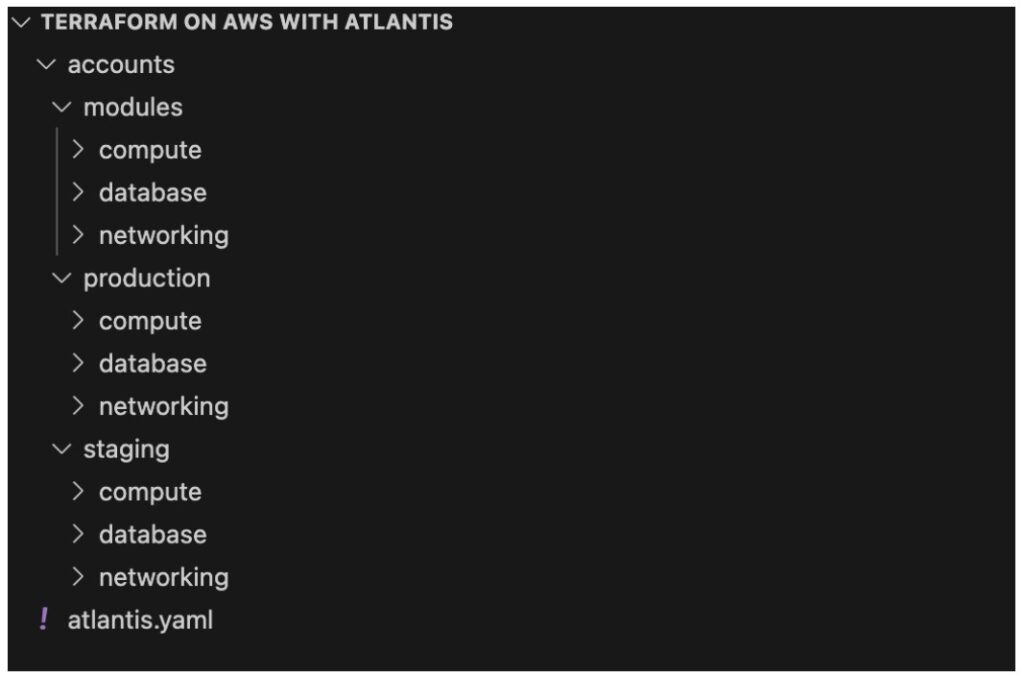
        Step 1: Implement Repository Structure for Scale

        Organize your Terraform code for maximum parallelization and clear ownership:

        Step 2: Set Up Advanced Atlantis Configuration

        #atlantis.yaml
        version: 3
        automerge: true
        delete_source_branch_on_merge: true
        parallel_plan: true
        parallel_apply: true
        
        workflows:
          production:
            plan:
              steps:
              - run: terraform init -input=false
              - run: terraform validate
              - run: terraform plan -input=false -out=$PLANFILE
              - run: ./policy-check.sh
            apply:
              steps:
              - run: ./pre-apply-checks.sh
              - run: terraform apply -input=false $PLANFILE
              - run: ./post-apply-validation.sh
              - run: ./notify-teams.sh "$WORKSPACE changes applied by $USER"
        
        projects:
        - name: prod-network
          dir: accounts/production/networking
          workflow: production
          autoplan:
            when_modified: ["*.tf", "../../../modules/networking/**/*.tf"]
          apply_requirements: ["approved", "mergeable"]
        
        - name: prod-databases
          dir: accounts/production/databases
          workflow: production
          autoplan:
            when_modified: ["*.tf", "../../../modules/database/**/*.tf"]
          apply_requirements: ["approved", "mergeable"]
        
        #Additional projects would be defined similarly

        Step 3: Implement Dependency Management

        Create a script to manage dependencies between projects:

        #!/bin/bash
        dependency-manager.sh
        
        Define dependencies
        declare -A dependencies
        dependencies["prod-compute"]="prod-network prod-databases"
        dependencies["staging-compute"]="staging-network staging-databases"
        
        Check if dependencies have been successfully applied
        check_dependency() {
          local dependency=$1
          local status=$(curl -s "http://atlantis-server:4141/api/projects/$dependency" | jq -r '.status')
          
          if [[ "$status" == "applied" ]]; then
            return 0
          else
            return 1
          fi
        }
        
        Check all dependencies for the current project
        PROJECT_NAME=$1
        if [[ -n "${dependencies[$PROJECT_NAME]}" ]]; then
          for dep in ${dependencies[$PROJECT_NAME]}; do
            if ! check_dependency "$dep"; then
              echo "Dependency $dep is not in applied state. Cannot proceed."
              exit 1
            fi
          done
        fi
        
        If we get here, all dependencies are met
        echo "All dependencies satisfied, proceeding with Terraform operation"
        exit 0

        Step 4: Implement Drift Detection

        Create a scheduled task to detect infrastructure drift:

        resource "aws_cloudwatch_event_rule" "drift_detection" {
          name                = "terraform-drift-detection"
          description         = "Triggers Terraform drift detection"
          schedule_expression = "cron(0 4   ? *)"  # Run daily at 4 AM
        }
        
        resource "aws_cloudwatch_event_target" "drift_detection_lambda" {
          rule      = aws_cloudwatch_event_rule.drift_detection.name
          target_id = "DriftDetectionLambda"
          arn       = aws_lambda_function.drift_detection.arn
        }
        
        resource "aws_lambda_function" "drift_detection" {
          function_name = "terraform-drift-detection"
          role          = aws_iam_role.drift_detection_lambda.arn
          handler       = "index.handler"
          runtime       = "nodejs16.x"
          timeout       = 300
          
          environment {
            variables = {
              ATLANTIS_URL = "https://atlantis.controlmonkey.com"
              GITHUB_TOKEN = "{{resolve:secretsmanager:github/token:SecretString:token}}"
            }
          }
        }

        Step 5: Implement Approval Workflows with AWS Services

        resource "aws_lambda_function" "approval_notification" {
          function_name = "terraform-approval-notification"
          role          = aws_iam_role.approval_lambda.arn
          handler       = "index.handler"
          runtime       = "nodejs16.x"
          
          environment {
            variables = {
              SNS_TOPIC_ARN = aws_sns_topic.terraform_approvals.arn
            }
          }
        }
        
        resource "aws_sns_topic" "terraform_approvals" {
          name = "terraform-approval-requests"
        }
        
        resource "aws_sns_topic_subscription" "approval_email" {
          topic_arn = aws_sns_topic.terraform_approvals.arn
          protocol  = "email"
          endpoint  = "[email protected]"
        }
        
        resource "aws_api_gateway_resource" "webhook" {
          rest_api_id = aws_api_gateway_rest_api.atlantis_extensions.id
          parent_id   = aws_api_gateway_rest_api.atlantis_extensions.root_resource_id
          path_part   = "webhook"
        }
        
        resource "aws_api_gateway_method" "webhook_post" {
          rest_api_id   = aws_api_gateway_rest_api.atlantis_extensions.id
          resource_id   = aws_api_gateway_resource.webhook.id
          http_method   = "POST"
          authorization_type = "NONE"
        }

        What If Atlantis with AWS Isn’t Enough?

        If your team is managing thousands of Terraform resources, dozens of AWS accounts, or struggling with policy enforcement and visibility—you may have outgrown Atlantis.

        While Atlantis is a solid open-source tool for automating Terraform plans and applies through pull requests, it wasn’t designed for enterprise-scale cloud governance. Teams scaling Terraform on AWS often face challenges around:

        • Large, complex configurations
        • Multi-account IAM permissions
        • Policy enforcement and compliance gaps
        • ClickOps and infrastructure drift

        This is where a platform like ControlMonkey comes in—offering full visibility, automated drift detection, real-time policy enforcement, and Terraform CI/CD that works across cloud and code.

        Infrastructure automation should grow with your cloud footprint. If Atlantis is slowing you down, it’s time to explore what’s next.

        👉 Book a demo and see how ControlMonkey scales what Atlantis started.

        Bottom CTA Background

        A 30-min meeting will save your team 1000s of hours

        A 30-min meeting will save your team 1000s of hours

        Book Intro Call

          Sounds Interesting?

          Request a Demo

          FAQs

          Atlantis helps DevOps teams automate Terraform workflows by triggering plan and apply via pull requests. When used with the AWS provider, it allows teams to apply changes across AWS accounts consistently—without embedding Terraform directly into CI/CD pipelines.

          Atlantis wasn’t designed for large-scale, multi-account AWS environments. Teams often run into slow plan times, complex IAM role setups, and limited policy enforcement. For advanced use cases, many teams adopt additional tools to handle drift detection, security, and governance at scale.
          Resource Blog News Customers Stories

          Updated: Aug 28, 2025 Upd: 28.08.25

          9 min read

          How AWS Security Hub Enforces Cloud Governance at Scale

          Zack Bentolila

          Zack Bentolila

          Marketing Director

          How AWS Security Hub Enforces Cloud Governance at Scale

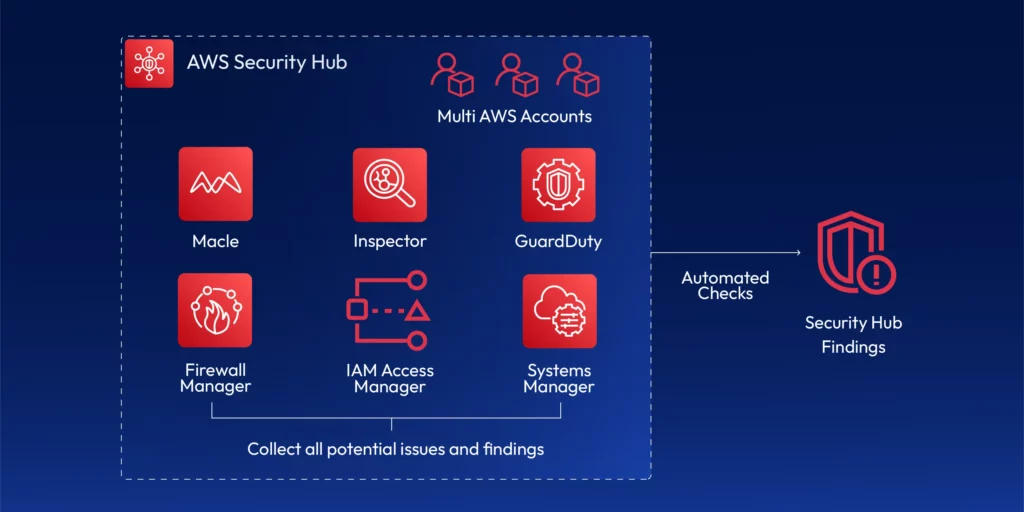
          The transition to the cloud has also been accompanied by a growing need for effective cloud governance. While it brings benefits such as cost savings, flexibility, and scalability, it also introduces challenges. The planning for security, compliance, and governance in the cloud can become very difficult due to numerous services, infrastructure configurations, and regulatory requirements. AWS Security Hub is a central security tool that manages security across several AWS accounts and automates security checks. It is integrated dashboards show the current security and compliance status so that quick actions can be taken.

          The idea is that it will aggregate alerts across multiple accounts through various services and partner tools. Such tools include:

          • Guard Duty
          • Inspector
          • Macie
          • IAM Access Analyzer
          • AWS Systems Manager
          • AWS Firewall Manager
          • AWS Partner Network Solutions

          AWS Security Hub consolidates all alerts into one centralized dashboard and collects all security findings in one place. You can act on the security alerts you receive. SecurityHub utilizes various AWS services and provides automated security auditing to ensure your cloud configuration complies with PCI-DSSSOC 2, HIPAA, and more.

          Cloud compliance and risk management are top priorities for all organizations. AWS Security Hub helps promote cloud governance. It focuses on cloud compliance and risk management. It empowers security teams to normalize processes, automate repetitive processes, and ensure that all configurations and resources comply with corporate policy.

          Understanding AWS Security Hub

          AWS Security Hub provides AWS customers and users with a single point where AWS customers have access to security findings and cloud compliance vulnerabilities across AWS accounts, services, and regions. It can detect cloud threats, analyze, and respond more quickly, staying ahead of threats and compliance standards.

          Key Features of AWS Security Hub:

          1. Centralized Dashboard: 

          Security Hub brings together findings from several AWS services. These include GuardDuty, AWS Config, AWS Inspector, and AWS Macie. You can view everything in one place. This would allow security operations to view security findings, compliance, and operational risk for all AWS accounts.

          2. Cross-region Aggregation: 

          AWS Security Hub supports cross-region aggregation, simplifying centralized visibility. That means sending data from different regions in one central region makes security administration much easier.

          3. Automated Compliance Checks with AWS Security Hub: 

          Security Hub checks the AWS environment for compliance with industry standards. These include the CIS AWS Foundations BenchmarkPCI DSS, SOC 2, and NIST. It also gives automated reports on compliance status.

          4. Security Findings: 

          Security Hub gathers and aggregates AWS services and provides them with complete details like severity, resource name, and recommended remediation actions. It helps security teams determine which issues to address first.

          5. AWS Organization Integration: 

          Security Hub has organization integration. That means you can manage all the security hub’s AWS accounts in one central account. Automatically, your organization adds new accounts. In that case, the security hub detects and adds them, and you can also have the management account by default as the security hub administrator. You can also design a member account as a designated delegated administrator for the security hub.

          6. Custom Insights and Automation: 

          You can create custom insights within the Security Hub according to specific security or compliance frameworks. This is useful for companies with specific regulatory or security needs.

          How AWS SecurityHub Works Across Services:

          it gathers information from third-party products and other AWS services.

          • GuardDuty identifies and warns against suspicious activity, such as odd traffic or unauthorized API activity.
          • AWS Config monitors configuration changes and compliance with security policy.
          • Amazon Inspector scans for vulnerabilities to analyze the security posture of an application.

          Security Hub aggregates all these services’ findings, analyzes them for actionable insight, and places them within an easy-to-understand interface. Remediation steps are also available for all findings, such as updating security groups or patching vulnerabilities.


          How AWS SecurityHub Controls Cloud Governance

          Security and compliance within the mature AWS environment are difficult to enforce without a unified system for monitoring security and compliance. AWS Security Hub makes cloud management easier by acting as an always-on monitoring control plane that monitors the entire AWS environment for security and compliance issues.

          How Security Hub Helps with Compliance Enforcement:

          • Automated Compliance Assessments: it collaborates with AWS Config to perform automated compliance scans for industry best practices and regulatory compliance. Preconfigured security controls ensure your AWS setup is up-to-date and based on the newest cloud governance best practices.
          • Enforcing Best Practices: Security Hub applies security best practices like CIS Benchmarks to scan your AWS account settings. For example, it checks whether you have turned on multi-factor authentication (MFA) for all IAM users or whether you have correctly configured security groups. It also utilizes best practices, such as least privilege access, by examining your IAM policy and suggesting improvements.
          • Integration with Security Tools: Security Hub integrates with cloud security services such as AWS IAM to audit user permissions against adherence to the principle of least privilege. It also integrates with AWS CloudTrail to track user activity and catch potential governance anomalies in real-time.
          • Security Alerts and Automation: Security Hub accumulates insights from multiple sources to assist in detecting vulnerabilities or misconfiguration. Security staff can automate remediation activities using AWS Lambda or Step Functions, which will be triggered upon detection. It significantly reduces the effort and provides more immediate responses to new risk findings.

          Best Practices for AWS Security Hub

          1. Enable Security Hub across all AWS accounts:

          To monitor centrally, enable AWS Security Hub for all AWS accounts within your organization. AWS Organizations are used to structure accounts to aggregate security findings from all accounts.

          2. Regularly Review Compliance Standards:

          Regularly audit CIS AWS Foundations, PCI DSS, and NIST benchmarks to ensure your AWS configuration meets best practices. Use AWS Config Rules to scan and check compliance regularly.

          3. Prioritized Key Findings:

          Not all discoveries are created equal—Prioritize remediation by utilizing Security Hub’s severity levels: IAM roles facing the open Internet and old security patches require rectification.

          4. Integrate Third-Party Solutions within Security Hub:

          Security Hub can integrate third-party security products to present a typical security posture. Security hubs can consume data from 3rd party integrations and send data to other partners. For example,

          • 3coresec
          • Alert Logic
          • Aqua

          Security Hub integrates with services such as Atlassian, FireEye, and Fortinet to forward findings from Security Hub. For example,

          • Atlassian
          • FireEye
          • Fortinet

          Because this is where you manage your findings. Some of these 3rd party integrations can loop back into the security hub and update the findings. For example,

          • Atlassian
          • Service Now

          5. Automated Remediation:

          Use AWS Lambda functions to automate remediating Security Hub findings. For example, if a security group is misconfigured, AWS Lambda can update security group rules based on predefined actions.

          6. Codify Infrastructure:

          Use Infrastructure as Code (IaC) tools like Terraform to define and manage cloud resources consistently. This reduces manual misconfigurations, enforces policy-as-code, and enables drift detection when integrated with Security Hub and AWS Config.

          Codifying Cloud Governance with Terraform

          While AWS Security Hub provides critical detective controls for identifying misconfigurations, effective cloud governance starts earlier — at the infrastructure provisioning stage. This is where Infrastructure as Code (IaC) becomes essential.

          Terraform, a leading IaC tool, enables teams to define cloud infrastructure in version-controlled configuration files. When paired with Security Hub and AWS Config, Terraform supports:

          • Standardized provisioning across dev, staging, and production environments
          • Enforcement of security policies by design
          • Audit trails and version control for infrastructure changes
          • Drift detection, ensuring infrastructure matches intended state

          By integrating Terraform with security controls, organizations move from reactive detection to preventive governance — addressing misconfigurations before they happen, not after.

          Integrating AWS Security Hub with Other AWS Services

          1. Security Hub and AWS GuardDuty:

          GuardDuty Generates findings, and these findings can be sent to the security hub. These findings are going to be converted to something called AWS Security Finding format (ASFF). GuardDuty dispatches these findings within 5 minutes, and then if you archive a finding in guard duty, it does not mean that it will update the finding in the security hub. Make sure you manage the findings directly in the security hub.

          2. AWS Config Integration:

          AWS Config regularly monitors the AWS resource configurations against security standards. Integrate Security Hub, receive combined compliance results, and initiate remediation actions automatically through the AWS Systems Manager.

          3. Amazon Macie Integration:

          Amazon Macie helps detect and protect sensitive information. Security Hub provides visibility of Macie results, such as exposure of Personally Identifiable Information (PII), and enables the organization to remediate them.

          4. How Security Hub Works with IAM:

          Security Hub integrates with IAM to assess the effectiveness of your policies. It scans for the use of least privilege access and notifies you of the presence of permissive roles or users.

          Meeting Compliance Requirements 

          Security Hub helps companies follow important standards. These include PCI DSS, HIPAA, and SOC 2. AWS Security Hub checks AWS systems in real-time. This ensures that companies stay compliant with these standards.

          Case Study Example:

          A financial services company within the healthcare industry uses Security Hub for HIPAA compliance. It scans its AWS environment regularly for HIPAA compliance, such as encrypting protected data at rest. It encrypts AWS storage buckets to keep data at rest. Security Hub tracks and logs all such recommendations so the company can achieve compliance with minimal risk of human error.

          TL,DR: 

          AWS Security Hub, a visionary compliance and security solution, actively addresses increasingly complex cloud configurations and stringent compliance needs. Security Hub works well with many AWS products. It helps create a single command center to manage, govern, and secure cloud environments.

          Organizations can avoid security risks and maintain compliance across the cloud environment through continued automation, centralized security monitoring, and forward-thinking governance. As cloud governance continues to grow, AWS Security Hub will lead in helping businesses with compliance. It offers an easy way to manage security and keeps companies informed about the latest industry standards.

          Take the next step in simplifying your cloud governance. With ControlMonkey, you can automate Terraform deployments, enforce policy-as-code, and manage AWS Security Hub findings from a single platform. Book a demo to see how ControlMonkey can help you scale compliance and governance with confidence.

          Bottom CTA Background

          A 30-min meeting will save your team 1000s of hours

          A 30-min meeting will save your team 1000s of hours

          Book Intro Call

          Author

          Zack Bentolila

          Zack Bentolila

          Marketing Director

          Zack is the Marketing Director at ControlMonkey, with a strong focus on DevOps and DevSecOps. He was the Senior Director of Partner Marketing and Field Marketing Manager at Checkmarx. There, he helped with global security projects. With over 10 years in marketing, Zack specializes in content strategy, technical messaging, and go-to-market alignment. He loves turning complex cloud and security ideas into clear, useful insights for engineering, DevOps, and security leaders.

            Sounds Interesting?

            Request a Demo

            AWS SecurityHub FAQ

            AWS SecurityHub is a cloud security posture management (CSPM) service that centralizes and automates security checks across AWS accounts. It collects information from services like GuardDuty, Config, and Macie. It checks your environment against standards like CIS, PCI DSS, and HIPAA.

            To use AWS SecurityHub, enable it across your AWS accounts via the AWS Console or CLI. Then integrate services like GuardDuty and AWS Config. SecurityHub automatically collects and displays findings, runs compliance checks, and can trigger automated remediation workflows using Lambda or Step Functions.

            Absolutely. DevOps teams use AWS SecurityHub to catch misconfigurations early, enforce least privilege, and stay compliant with infrastructure policies. Integrated with CI/CD pipelines, it helps DevOps shift left by surfacing risks before code reaches production.

            You can integrate AWS SecurityHub with Terraform by codifying security controls and compliance policies as part of your IaC. Use Terraform to ensure all resources meet predefined configurations, then let SecurityHub continuously audit for drift or violations. Combined, they deliver preventive and detective cloud governance.

            Resource Blog News Customers Stories

            Updated: Mar 01, 2026 Upd: 01.03.26

            6 min read

            How to Troubleshoot & Debug Terraform on AWS

            Daniel Alfasi

            Daniel Alfasi

            Backend Developer and AI Researcher

            How to Troubleshoot & Debug Terraform on AWS

            Using Terraform to provision AWS infrastructure is an excellent cloud resource automation practice. However, when doing so, you will indefinitely run into errors. Such problems may range from state file dependency to AWS-specific configuration errors. The guide helps you debug Terraform and fix common problems. It covers deploying AWS configurations with Terraform. You will learn about debugging Terraform state issues and using dependencies. It also includes AWS-specific troubleshooting tips. Finally, it shows how to use Terraform debug logging to solve issues.

            Top 4 Terraform Deployment Issues on AWS

            Various issues can occur when deploying resources on AWS through Terraform. Some of the most common ones are:

            1. State File Problems

            The state file of Terraform maintains infrastructure information. Which tracks resources and can become corrupted or out of sync with AWS resources, causing Terraform to fail.

            2. Dependency Errors

            AWS objects are often connected. For example, you must define a security group before applying it to an EC2 instance. Deployment errors occur when these interdependencies are handled improperly.

            3. AWS-Specific Issues

            AWS configuration problems, like IAM permissions or VPC issues, often cause errors during deployment.

            4 . Debugging Logs

            Sometimes, Terraform lacks context about what’s going wrong. That’s where debug logs in Terraform become useful to check what might happen.

            Troubleshooting terraform state issues:

            The terraform.tfstate is a critical component that keeps your infrastructure current. It tells Terraform what resources exist and keeps information about them.

            You can have issues with the state file, e.g., the mismatch between your state file on your machine and the AWS state. The following are how you resolve common state file issues:

            • Corrupted State File: If your state file has become corrupted, Terraform cannot apply or plan modifications.
            • Out-of-Sync State: The Terraform state might not sync with infrastructure in environments where AWS resources are updated manually (e.g., through ClickOps).
            • Missing Resources in State: When Terraform fails to find the resource in a state file, it tries to recreate it.

            How to Debug Terraform State File Problems on AWS:

            Step 1: Check the State File: 

            This terraform command can view a listing of all AWS resources in the Terraform state file. This will help identify if any resources are missing or incorrectly recorded.

            terraform state list

            Step 2: Refresh the State: 

            Sometimes, Terraform might get out of sync with AWS resources. To force Terraform to update its state by using the terraform refresh command. It will update the state file to represent the current state of your AWS environment.

            terraform refresh

            Step 3: Remove Resources from the State:

            Delete obsolete resources from a Terraform state file when data in it is no longer accurate (e.g., a resource deleted from AWS) using:

            terraform state rm <resource_type>.<resource_name>

            For example, to terminate an EC2 instance from the state:

            terraform state remove aws_instance.control-monkey_instance

            Step4: Reimport Resources: 

            If Terraform has lost track of a resource, you can reimport a resource into a state file through the terraform import command. The command re-syncs the state file from the AWS resource identified by instance ID.

            terraform import aws_instance.control-monkey_instance 

            Debugging Terraform Dependency Problems

            In AWS, many resources depend on others. For example, an EC2 requires an AWS security group to be created before it can be attached to other AWS services. These interdependencies often cause deployment failures. For a deeper look at common Terraform errors, including dependency problems, check out our full breakdown. Most fall into two categories: implicit and explicit.

            1. Implicit Dependencies: 

            Terraform automatically presumes some dependencies in some cases, but it is not always correct.

            2. Explicit dependencies: 

            You may need to explicitly state the dependencies to ensure that resources get created in the correct order.

            How to Debug Terraform Dependency Issues

            1. Run terraform plan

            to verify dependency problems. Terraform will display the sequence in which the resources will be created, and will display a dependency problem here.

            terraform plan

            2. Specify Dependencies Using depends_on

            to get Terraform to build things in the right order, use the depends_on meta-argument. Assuming, depending on a security group since we’re creating an EC2 instance, state the dependency:

            resource "aws_security_group" "control-monkey_sg" {
              name        = "control-monkey_sg"
              description = "Security group for EC2 instance"
            }
            
            resource "aws_instance" "control-monkey_instance" {
              ami           = "ami-0e449927258d45bc4"
              instance_type = "t2.micro"
              security_groups = [aws_security_group.control-monkey_sg.name]
              
              depends_on = [aws_security_group.control-monkey_sg]
            }

            3. Refactor Large Configurations: 

            Large Terraform configurations can create complex dependencies. Splitting your configuration into smaller, modular parts (in other words, working with Terraform modules) can improve code clarity and simplify dependency management.

            Common AWS-Specific Issues

            On the other hand, there are common AWS issues that you’ll run into. Some of these issues can include:

            • IAM permissions: Lack of proper IAM permissions may prevent Terraform from creating resources.
            • VPC/Subnet Misconfigurations: Misconfigurations in the VPC setting, route table, or subnet may result in a deployment failure.
            • Service Quotas: AWS has quotas for some resources, such as EC2 instances, that may stop additional provisioning.

            How to Troubleshoot AWS-Specific Issues:

            1. IAM Permissions: 

            Ensure you possess the correct IAM user or role permissions that allow Terraform to create and manage AWS resources. For instance, to create EC2 instances, the role requires ec2:RunInstancespermission.

            EC2 policy example;

            {
              "Version": "2012-10-17",
              "Statement": [
                {
                  "Effect": "Allow",
                  "Action": "ec2:RunInstances",
                  "Resource": "*"
                }
              ]
            }

            2. Verify AWS Service Limits: 

            If you see AWS service limit-related errors (for instance, if you’ve reached the limit of the number of EC2 instances per region), verify the AWS Service Limits page and ask that your limits be increased if you need to.

            3. VPC and Subnet Configuration:

            Misconfigured VPCs or subnets can cause incorrect resource deployment. Double-check your VPC setup, CIDR ranges, and subnet availability in the AWS Management Console.

            Debug Terraform Deployments with Logs

            Where Terraform does not give enough error context, debug logs are valuable for more insight. Terraform debug output can provide detailed information about the underlying error, making it easier to identify issues. Using Terraform Logs to Debug:

            1. Enable Debug Logging: 

            For detailed logs to be generated, set the TF_LOG environment variable to DEBUG.

            export TF_LOG=DEBUG

            2. Run Terraform Command:

            Execute the Terraform command (terraform plan or terraform apply) to see the detailed debug output information. This will show internal API calls, resource build steps, and failures, if any.

            3. Save Logs to a File: 

            To analyze saving logs in the future, utilize the TF_LOG_PATH environment variable.

            export TF_LOG_PATH=terraform.log

            4. Analyze logs: 

            Review logs with ERROR or WARN logs. Look for failed API calls, invalid arguments, or missing resource dependencies.

            Final Thoughts on Debugging Terraform on AWS

            Efficient debugging of AWS Terraform deployments requires debugging and utilization of AWS-compliant capabilities. Utilization of these best practice methods will maintain the infrastructure automation process in good and efficient working order. Synchronizing the state file properly, appropriately handling dependencies, and optimizing AWS-specific configurations will avoid deployment issues. Terraform debug logs provide more details when the default error messages are not enough. This helps you find and fix hidden issues quickly.

            ControlMonkey may enhance your Terraform deployments through automated compliance scanning, live monitoring, and centralized management of your cloud environment. ControlMonkey aligns with Terraform on AWS, facilitates easy problem resolution, and guarantees that your deployments adhere to best practice standards to minimize risk and accelerate development.

            Bottom CTA Background

            A 30-min meeting will save your team 1000s of hours

            A 30-min meeting will save your team 1000s of hours

            Book Intro Call

            Author

            Daniel Alfasi

            Daniel Alfasi

            Backend Developer and AI Researcher

            Backend Developer at ControlMonkey, passionate about Terraform, Terragrunt, and AI. With a strong computer science background and Dean’s List recognition, Daniel is driven to build smarter, automated cloud infrastructure and explore the future of intelligent DevOps systems.

              Sounds Interesting?

              Request a Demo

              FAQ on Debugging Terraform

              Debugging Terraform deployments often involves checking for state file issues, resolving dependency errors, and reviewing AWS-specific configurations. It’s recommended to use the terraform plan command to check for potential issues and apply the terraform refresh command to sync state files.

              To debug Terraform code, ensure that you need to check for syntax errors, validate the configurations, and use terraform plan to simulate changes. You can also use debug logs by setting the TF_LOG environment variable to DEBUG for detailed insights.

              In Visual Studio Code, Terraform extensions are available to help with syntax highlighting and error detection. You can run Terraform commands directly from the integrated terminal and check for errors in the output to troubleshoot issues effectively.

              To debug the Terraform plan, use terraform plan to simulate the deployment and identify potential issues related to resource dependencies, configuration errors, or state file mismatches.

              Check for variable misconfigurations by reviewing your variable definitions and the values provided. You can use the terraform console to inspect variable values during execution to ensure they are being set correctly.

              To run Terraform in debug mode, set the TF_LOG environment variable to DEBUG. This will provide detailed logs during Terraform operations, allowing you to better understand the underlying issues.

              Resource Blog News Customers Stories

              Updated: Jan 26, 2026 Upd: 26.01.26

              7 min read

              How to Use Terraform Variables: Best Practices

              How to Use Terraform Variables: Best Practices

              Imagine you are using your favorite IaC tool – Terraform, to deploy infrastructure for three environments: development, staging, and production. Each environment needs its own configurations, resource names, tags, and other customizations, however the underlying architecture remains the same. Without Terraform variables, you would create copies of the same configurations with minor changes in values. Therefor, Terraform variables allow you to parameterize your code to be flexible, maintainable, and reusable. Mastering the use of variables is essential for creating configurations that are both reusable and flexible to changing requirements.

              📚 Related Reading:

              What Are Terraform Variables?

              Terraform variables act as placeholders that allow you to parameterize your infrastructure configuration without modifying the underlying code. Similar to variables in programming languages, you declare them with names and assign values that Terraform interpolates during execution. You can create a variable to set an AWS region, instance type, or S3 bucket name. You can then use this variable throughout your Terraform scripts.

              Similar to most programming languages, Terraform variables have various types.

              • Strings: Text values
              • Numbers: Numeric values
              • Booleans: true/false values
              • Lists: Ordered collections of values
              • Maps: Collections of key-value pairs
              • Objects: Complex structured data
              • Sets: Unordered collections of unique values

              Here is how you define a variable in Terraform:

              variable "instance_type" {
                description = "The type of EC2 instance to deploy"
                type        = string
                default     = "t2.micro"
              }

              You can then reference the variable across your code:

              resource "aws_instance" "web_server" {
                ami           = "ami-0c55b159cbfafe1f0"
                instance_type = var.instance_type
              }

              Using Terraform Variables in AWS Deployments

              Managing Terraform variables effectively is essential in cloud environments such as AWS, where infrastructure spans multiple services and environments. Variables allow you to maintain consistency and standardize your complex AWS environments. For example, almost all AWS resources support tagging. You can enforce mandatory tags for all resources and use variables to configure the tag values.

              Identifying variables

              A good starting point is identifying the environment-specific (Infrastructure-related) data and naming conventions suitable for your deployments. Let’s take a scenario where you deploy an application for different customers on AWS. Each customer requires dedicated infrastructure. Some customers require several environments and have requirements on which region they need their application deployed.

              We can recognize the following variables change based on the customer and environment:

              • Customer Name
              • Region
              • Environment Name

              Environment name and Customer Name are not AWS-related concepts. So we can categorize them for naming conventions.

              The region is environment-specific and AWS related. Apart from the region, what else can we parameterize? Well, that depends on what AWS resources you deploy. To keep it simple, let’s say this application runs on an EC2 instance and needs access to an S3 bucket. So, at a minimum, we should create a VPC, an EC2, an S3 bucket, and an IAM Policy.

              We will use customer name as a prefix and environment as a suffix for resource names. Therefor, this helps us create distinct and easily identifiable resources and ensures resource names are not repeated across deployments. Also note that resources such as S3 buckets and IAM Policies are global and cannot have the same name across regions.

              variable "customer_name" {
                description = "Customer Name"
                type        = string
              }
              
              variable "environment" {
                description = "Environment Name"
                type        = string
                default     = "dev"
              }

              We would need to create different VPCs without CIDR overlap, and we will also need to change the instance type for each customer. Likewise, we will create some AWS-related variables that are also customer—and environment-specific.

              Note that you can maintain all your variables in a separate file, typically named variables.tf

              Identifying Locals

              Terraform locals are a type of variable that you declare for internal calculations and derived values. You cannot provide them externally. If you want to construct a new variable based on some values, you should use locals.

              Let’s use locals to satisfy the following requirements;

              • We use tags in many of our resources. Locals can be used to create a single local variable that holds all our tags
              • We will prefix all our resource names with “-”.
              • We want to create two EC2 instances if the environment is prod
              locals {
                common_tags = {
                  Customer    = var.customer_name
                  Environment = var.environment
                  ManagedBy   = "Terraform"
                  Project     = "${var.customer_name}-${var.environment}"
                }
              
                name_prefix = "${var.customer_name}-${var.environment}"
              
                is_production = var.environment == "prod" ? true : false
              
                instance_count = local.is_production ? 2 : 1
              }

              Creating reusable scripts

              In this paragraph we will show variables and locals in our script.

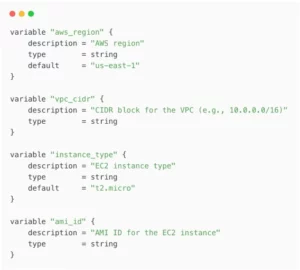
              First Step: Define your variables

              variable "customer_name" {
                description = "Customer Name"
                type        = string
              }
              
              variable "environment" {
                description = "Environment Name"
                type        = string
                default     = "dev"
              }
              
              variable "aws_region" {
                description = "AWS region"
                type        = string
                default     = "us-east-1"
              }
              
              variable "vpc_cidr" {
                description = "CIDR block for the VPC (e.g., 10.0.0.0/16)"
                type        = string
              }
              
              variable "instance_type" {
                description = "EC2 instance type"
                type        = string
                default     = "t2.micro"
              }
              
              variable "ami_id" {
                description = "AMI ID for the EC2 instance"
                type        = string
              }

               Step 2: Local values and tags

              locals {
                common_tags = {
                  Customer    = var.customer_name
                  Environment = var.environment
                  ManagedBy   = "Terraform"
                  Project     = "${var.customer_name}-${var.environment}"
                }
              
                name_prefix      = "${var.customer_name}-${var.environment}"
                is_production    = var.environment == "prod" ? true : false
                instance_count   = local.is_production ? 2 : 1
              }

              Step 3: Configure the provider and networking resources

              provider "aws" {
                region = var.aws_region
              }
              
              resource "aws_vpc" "main" {
                cidr_block = var.vpc_cidr
                tags = merge(local.common_tags, {
                  Name = "${local.name_prefix}-vpc"
                })
              }
              
              resource "aws_subnet" "main" {
                vpc_id     = aws_vpc.main.id
                cidr_block = var.vpc_cidr
                tags = merge(local.common_tags, {
                  Name = "${local.name_prefix}-subnet"
                })
              }

              Create a security group

              resource "aws_security_group" "allow_ssh" {
                name        = "${local.name_prefix}-sg"
                description = "Allow SSH inbound traffic"
                vpc_id      = aws_vpc.main.id
              
                ingress {
                  description = "SSH from anywhere"
                  from_port   = 22
                  to_port     = 22
                  protocol    = "tcp"
                  cidr_blocks = ["0.0.0.0/0"]
                }
              
                egress {
                  from_port   = 0
                  to_port     = 0
                  protocol    = "-1"
                  cidr_blocks = ["0.0.0.0/0"]
                }
              
                tags = merge(local.common_tags, {
                  Name = "${local.name_prefix}-sg"
                })
              }

              Step 5: Launch EC2 instance(s)

              resource "aws_instance" "web" {
                count         = local.instance_count
                ami           = var.ami_id
                instance_type = var.instance_type
                subnet_id     = aws_subnet.main.id
                vpc_security_group_ids = [aws_security_group.allow_ssh.id]
              
                tags = merge(local.common_tags, {
                  Name = "${local.name_prefix}-instance-${count.index + 1}"
                })
              }

              ✅ Last Step: Create an S3 bucket and IAM policy

              resource "aws_s3_bucket" "data" {
                bucket = "${local.name_prefix}-data"
                tags = merge(local.common_tags, {
                  Name = "${local.name_prefix}-data"
                })
              }
              
              resource "aws_iam_policy" "s3_access" {
                name        = "${local.name_prefix}-s3-access"
                description = "Policy to allow access to the customer's S3 bucket"
              
                policy = jsonencode({
                  Version = "2012-10-17"
                  Statement = [
                    {
                      Action = [
                        "s3:GetObject",
                        "s3:ListBucket"
                      ]
                      Effect   = "Allow"
                      Resource = [
                        aws_s3_bucket.data.arn,
                        "${aws_s3_bucket.data.arn}/*"
                      ]
                    }
                  ]
                })
              }

              Notice how we used the common_tags and name_prefix locals in all our resources. We declared them as values for arguments in our resources. We also used the count meta-argument to conditionally set the number of EC2 instances based on our environment.

              Declaring Outputs

              Outputs are another kind of variable. You can use outputs to print the actual infrastructure information provisioned by your configurations.

              output "vpc_id" {
                value       = aws_vpc.main.id
                description = "The ID of the VPC"
              }
              
              output "instance_id" {
                value       = aws_instance.web.id
                description = "The ID of the EC2 instance"
              }
              
              output "s3_bucket_name" {
                value       = aws_s3_bucket.data.bucket
                description = "The name of the S3 bucket"
              }

              Declaring Outputs Provisioning with Terraform Variables

              We can apply this script by substituting values;

              Our script is now reusable and flexible, but there is still a problem. Depending on our deployment, we want to vary the values we use for each variable. We should also version-control which values we use for each deployment.

              Terraform has a neat way to handle this requirement — learn how to automate your deployments. You can create a .tfvars file that sets these variables and overrides defaults. You can maintain this file in your version control.

              Here is our .tfvars file. Let’s call it customerA-dev.tfvars.

              customer_name = "controlmonkey"
              aws_region    = "us-east-1"
              environment   = "dev"
              vpc_cidr      = "10.2.0.0/16"
              ami_id        = "ami-084568db4383264d4"

              Let’s apply it with the command;

              terraform apply -var-file=” ./tfvars/customerA-dev.tfvars 

              Furthermore, let’s say we have another customer – CustomerB, and we should deploy their “prod” environment. Our “ customerB-prod.tfvars ” file would be

              customer_name   = "customerB"
              aws_region      = "ap-northeast-1"
              environment     = "prod"
              vpc_cidr        = "10.5.0.0/16"
              ami_id          = "ami-084568db4383264d4"
              instance_type   = "t2.medium"

              Notice we did not provide instance_type for customerA. That is because we have set a default value for that variable.

              4 Best Practices for Using Terraform Variables

              Organize variables by function or resource type.

              icon

              See how top teams enforce Terraform best practices at scale

              You’ve learned the theory — now see how a unified IaC platform automates variable governance, drift prevention, and enforceable policies across all environments.

              2) Always include descriptions

              Document what each variable is for:

              variable "vpc_cidr" {
                description = "CIDR block for the VPC (e.g., 10.0.0.0/16)"
                type        = string
              }

              3) Set sensible defaults: 

              Provide reasonable default values when appropriate:

              variable "environment" {
                description = "Deployment environment"
                type        = string
                default     = "dev"
              }

              4) Validate inputs: 

              Use validation rules to prevent errors:

              variable "instance_type" {
                type    = string
                default = "t2.micro"
              
                validation {
                  condition     = contains(["t2.micro", "t3.small", "t3.medium"], var.instance_type)
                  error_message = "Instance type must be t2.micro, t3.small, or t3.medium."
                }
              }

              5)Use variable files for environment-specific values: 

              Create separate .tfvars  files for dev, staging, and production.

              Common Terraform Variables Pitfalls to Avoid

              1️⃣ Overusing Terraform variables:

              despite this article, not everything needs to be a variable.

              2️⃣ Use local values for intermediate calculations:

              When you can instead of using variables within resources:

              locals {
                name_prefix = "${var.environment}-${var.project}"
              }

              3️⃣Neglecting sensitive data:

              Lastly it is important to mark sensitive variables accordingly.

              variable "database_password" {
                description = "RDS database password"
                type        = string
                sensitive   = true
              }

              Terraform Variables Conclusion

              The power of Terraform variables is in transforming your static infrastructure code into dynamic and reusable configurations. By using variables, you can keep deployments consistent in different environments. You can find configuration drift early. Working with best practices will help you avoid common mistakes. This will help you create secure Infrastructure as Code (IaC) configurations. One more thing you should look into is to detect configuration drift early. These can grow with your organization’s needs.

              With ControlMonkey, you can automate managing Terraform variables. It helps you follow best practices and makes deployments easier for different environments. Enjoy AI-driven efficiency and multi-cloud compliance. Request a demo or learn more in our resource library.

              Bottom CTA Background

              A 30-min meeting will save your team 1000s of hours

              A 30-min meeting will save your team 1000s of hours

              Book Intro Call

                Sounds Interesting?

                Request a Demo

                FAQ on Terraform Variables

                After you declare the variables in your terraform configuration, you can set environment variables. Use the prefix TF_VAR to assign values to those variables.

                Prefix with TF_VAR_ for automatic mapping:

                export TF_VAR_bucket_name=my-terraform-bucket

                Terraform CLI also supports environment variables to modify its default behaviour.

                You can set environment variables for Terraform in Windows using the Command Prompt or PowerShell. The syntax varies between the command-line interpreter you use:


                Command Prompt:

                set TF_VAR_region=us-west-2

                PowerShell:

                $env:TF_VAR_region = “us-west-2”

                You can access output variables using the `terraform output` command after applying your configuration. Output variables will always show up after you run a terraform apply command. This happens even if there are no changes to your infrastructure.

                Terraform variables are declared in .tf files using the` variable` block.

                variable "region" {
                  description = "AWS region"
                  type              = string
                  default          = "us-west-2"
                }
                

                Once you have declared the variables, you can pass values (or override) using;

                • terraform.tfvars files
                • Command-line flags: -var=”region=us-east-1″
                • Environment variables (see below)
                Cookies banner

                We use cookies to enhance site navigation, analyze usage, and support marketing efforts. For more information, please read our. Privacy Policy