Modern Infrastructure as Code (IaC) is tightly integrated with CI/CD. If you use GitHub Actions, it’s possible to set up a complete workflow from code reviewing to provisioning for your IaC. In this workflow Atlantis tracks pull request changes so that every IaC change is reviewed and approved directly from GitHub.
By integrating GitHub Actions with runners, secrets, and policy gates, you make safe infrastructure delivery fully automated and streamlined. Also, you can combine it with ControlMonkey for drift detection, transparency around costs, and to enforce policy guardrails around Atlantis runs, so reviewers see risks
before merging a PR.

Want to strengthen your Atlantis workflow with cost insights and policy guardrails?
See how ControlMonkey adds automation, visibility, and drift detection on top of your existing setup.
Setting Up Atlantis with GitHub Actions
Bringing Atlantis into your GitHub workflow and learning how to configure Atlantis is straightforward. It involves a few steps, generating secure credentials, wire up webhooks, add webhook signatures, and adding a .atlantis.yaml
1. Generate and store GitHub tokens
Atlantis needs Git host access credentials and short-lived tokens so it can;
- Read PR events and post plan/apply statuses
- Clone repository code.
There are two options in generating short-lived tokens that GitHub supports.
1. GitHub App – Create an organization-level GitHub App with:
- Repository contents: Read-only
- Pull requests: Read & write
- Metadata: Read-only
Install the App on every repository that Atlantis needs to manage. Here, when app is used you generate an installation token every hour. This removes the need of keeping long-lived secrets defined in your pipelines.
2. Personal Access Token (PAT) – Create a service account and generate a PAT and assign only the minimal scopes, repo, read:org, and workflow
For both approaches, here is the process you need to follow:
- Protect the secrets properly – You can set the tokens as secrets in GitHub → Settings → Secrets → Actions (or in an external store like AWS Secrets Manager) to protect it when GitHub Actions injects it into the Atlantis container file.
- Pass It To Terraform/Atlantis – When you bootstrap Atlantis, reference the same secret via variables (e.g.
github_token = var.github_token - Rotate and audit – Schedule automatic rotation (hourly for GitHub Apps and at least quarterly for PATs) and monitor access logs for anomalies to reduce the risk of access errors.
By treating the token like any other production secret, you restrict one of the easiest attack vectors in a GitOps pipeline.
2. Configure webhooks
Atlantis must receive webhook events from pull_request, issue_comment, and push actions to automate the execution of infrastructure changes. To set the webhook navigate to Webhooks under GitHub settings and add a new webhook pointing to your Atlantis server URL with the below configuration.
- Content type: application/json
- Secret: Use the same value you’ll pass to the webhook secret variable in Terraform.
Once saved, GitHub will deliver a ping event to validate its reachability and display the status for each individual event. For a successful verification, you will receive a 200 OK response.
3. Minimal .atlantis.yaml
Create a file named .atlantis.yaml in the root of each repository or in a shared parent folder that holds your Terraform code:
version: 3
projects:
  - name: core
    dir: .
    workspace: default
    autoplan:
      when_modified: ["*.tf", "*.tfvars"]
      enabled: true
    workflow: default
workflows:
  default:
    plan:
      steps:
        - run: terraform init -input=false
        - run: terraform plan -input=false -no-color
    apply:
      steps:
        - run: terraform apply -auto-approve -input=false -no-color
When reviewers want to promote a plan to an apply in Atlantis, they leave an apply comment on any pull request. The plan output, in this case, stays attached to the pull request via the run command steps. Atlantis also validates branch-protection rules and required-review settings as defined.
4. Wiring it through GitHub Actions
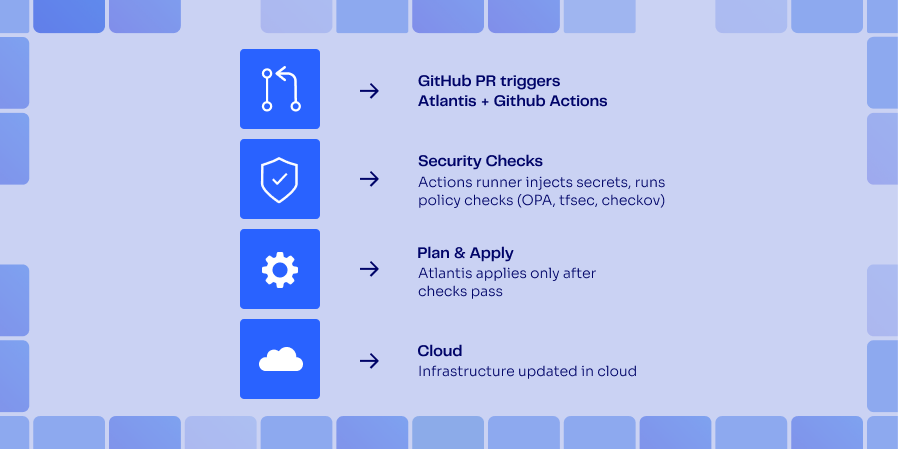
You can run Atlantis as its own service pod (e.g., an ECS task or EC2 instance). While it’s technically possible to run Atlantis inside a GitHub Actions, it works best as a long-running service so that webhook deliveries always have a live target environment.
The GitHub Actions is still useful when running tests and for small teams. ControlMonkey can act as a pre-merge gate to block non-compliant, over-budget Terraform changes before running apply.
name: Atlantis Execution
on:
  workflow_dispatch: {}
  push:
    branches: ["main"]

jobs:
  build:
    runs-on: ubuntu-latest
    steps:
      - uses: actions/checkout@v4
      - name: Start Atlantis
        env:
          AT_GH_APP_ID: ${{ secrets.AT_GH_APP_ID }}
          AT_GH_APP_KEY: ${{ secrets.AT_GH_APP_KEY }}
          AT_REPO_ALLOWLIST: "github.com/<my-custom-org>/*"
        run: docker run --rm -d -p 4141:4141 -e AT_GH_APP_ID -e AT_GH_APP_KEY -e AT_REPO_ALLOWLIST runatlantis/atlantis:v0.25.0
This workflow launches Atlantis in a Docker container. YOu can dispatch it manually or upon main branch changes. For this to work Webhooks must target a stable, publicly accessible Atlantis URL. For production infrastructure, it’s better to run Atlantis on a server (e.g ECS/Fargate, EC2, or Kubernetes) with a load balancer and a custom domain.
5. How comments trigger plans & applies
Atlantis treats comments on pull requests as commands with a meaning. These commands are then interpreted by Atlantis to execute relevant actions. For example with just a single comment, your changes code shifts from “proposed” to “applied”. This makes things simple and helps to manage the entire Terraform lifecycle inside GitHub without the need to move across different systems. Let’s look at how this works step by step.
- First a developer needs to open a pull request.
- GitHub triggers the PR webhook.
- Atlantis clones the repository at the PR SHA, runs terraform init and plan, and posts the output back to the PR.
- The reviewer types a comment with Atlantis apply.
- Then Atlantis checks for branch protections and the state of approvals.
- With success, terraform apply runs and the result is posted with a comment.
This makes the entire lifecycle of events and its live infrastructure, captured in GiHub history included in comments.Example: Bootstrapping Atlantis on AWS with the terraform-aws-atlantis Module
Let’s look at how to set up Atlantis for provisioning an ECS Fargate cluster with an ALB that serves HTTPS requests.
module "atlantis" {
  source  = "terraform-aws-modules/atlantis/aws"
  version = "4.0.0"

  name            = "team-atlantis"
  aws_region      = "eu-west-1"

  # VPC
  vpc_id          = var.vpc_id
  subnet_ids      = var.private_subnet_ids

  # GH secrets
  github_user          = "my-org"
  github_token         = var.github_token
  webhook_secret       = var.webhook_secret

  # Optional:
  allow_repo_config = true
  atlantis_version  = "0.25.0"

  terraform_state_bucket_name = var.state_bucket_name
}
After running terraform apply, the module outputs the Load Balancer DNS name. You can use it as the webhook target in GitHub. Atlantis runs inside a Fargate task, configured to scale with demand, and support communication using TLS via ACM. ControlMonkey simultaneously centralizes drift monitoring and cost visibility over configured Atlantis repositories.
Want full visibility into your Atlantis-driven infrastructure?
Enhance your pipeline with automated drift detection and cost insights from ControlMonkey.
Verifying the setup
To verify the setup, you can create a new branch with a basic main.tf file (like making an S3 bucket). Then to test, create a pull request. Once the Atlantis Plan comment shows up, check the diff to verify the changes.
The terraform-aws-atlantis module automatically keeps the plan files in S3 to inspect later. Comment Atlantis apply on auto-merge to approve and merge at the same time when the apply is done. You now have a fully managed Atlantis server in under 30 minutes, integrated with GitHub.
Best Practices for GitOps at Scale
When setting up GitOps for Atlantis and Terraform you need to follow several best practices to defend against unauthorized access, securing credentials, enforce peer review on IaC changes, and keep environments in sync.
1. Tokens are considered secrets too
GitHub Tokens are configured to self-rotate every 90 days. However Personal Access Tokens (PAT) doesn’t have the same auto-rotation. Therefore you need to handle them carefully. Any long living token should be kept in AWS Secrets Manager or Vault, and retrieve them through Terraform variable environment references. Secrets should never be printed in CI logs, and the jobs should fail if secrets are not excluded.
2. Align PR approval policies with atlantis apply
Atlantis respects GitHub branch protection rules. Therefore, enforce at least one code-owner review on sensitive workspaces. For critical resources (e.g., IAM, VPCs) that could disrupt the operation, you can configure it to require two approvals and use signed commits for an extra layer of trust.
3. Use separate workspaces for impact control (reducing the blast-radius)
Following practices such as project-per-directory with Terraform workspaces allows you to separate staging, prod, and sandbox stacks. That means a misconfigured terraform apply in a sandbox environment will be limited in impacting a production environment.
4. Audit everything, continuously
Enable GitHub Audit Log to track webhook deliveries and comment history. ControlMonkey complements this by aggregating run history, policy decisions, and cloud-state snapshots for end-to-end auditability. Since Atlantis uses GitHub Comments for managing its workflow, it will be useful for better traceability in the long run. Also you can ship Atlantis container logs to CloudWatch for higher durability. You can also periodically diff Terraform state (terraform show) against cloud APIs to detect infrastructure drift.
5. Complement Atlantis with policy and governance tools
Atlantis is made deliberately simple. Therefore you can combine it with other tools such as;
- Open Policy Agent (OPA) or HashiCorp Sentinel in a GitHub Action as a layer on top for the pre-merge step.
- Use ControlMonkey for drift detection, cost visibility, and enforcing policy guardrails.
- Use tfsec or checkov for static IaC analysis.
- You can use Infracost for comments that impact the budget.
6. Limit for approved repositories and enforce via repo_allowlist
Limit Atlantis to approved repositories to guard against malicious executions and to avoid running terraform apply in wrong unintended cloud accounts.
Conclusion
When combining Atlantis and GitHub Actions, you can set up a complete review driven CI/CD setup. Since the workflow steps are also captured in GitHub comments, it acts as an unchangeable history that’s easier to track when needed.
Want even more streamlining? ControlMonkey combines Atlantis, drift detection, cost visibility, and policy gates all in one platform. So you can concentrate on building rather than pipeline maintenance. Schedule a demo and discover how painless GitOps can be.

A 30-min meeting will save your team 1000s of hours
A 30-min meeting will save your team 1000s of hours
Author